USB-C vs Thunderbolt 4 vs USB4: What’s the Difference?
USB-C vs Thunderbolt 4 vs USB4: What's the Difference? The short answer is that USB-C describes the connector, while USB4 and Thunderbolt 4 describe connection technologies. That distinction matters because two identical USB-C ports can offer very different speeds, display support, and charging capabilities.
Choose by the port’s capabilities, not by its shape alone.
As of 2026, USB4 can support 20Gbps, 40Gbps, or 80Gbps, depending on the device and implementation. Thunderbolt 4 offers a more consistent feature set, including 40Gbps bandwidth and PCI Express tunneling. Let’s start with the basic difference between the connector and the technology behind it.
USB-C vs Thunderbolt 4 vs USB4: What's the Difference?
USB-C, USB4, and Thunderbolt 4: The Quick Answer
USB-C is the physical connector used by all three technologies. USB4 is a USB data standard that runs through USB-C ports and cables. Thunderbolt 4 is Intel’s high-performance standard with stricter minimum requirements.
USB4 performance varies by device. Thunderbolt 4 guarantees 40Gbps bandwidth and broader docking features.
USB-C Is the Connector: USB4 and Thunderbolt 4 Are the Technologies
USB-C tells you what the plug and port look like. It doesn’t tell you the maximum data speed, charging power, or display support. A USB-C port might support USB 2.0, USB 3.2, USB4, DisplayPort, Thunderbolt 4, or only charging.
That’s why the familiar oval connector can cause confusion. The same shape may connect a phone charger, an external SSD, a monitor, or a full docking station. The hardware inside the port determines what it can actually do.
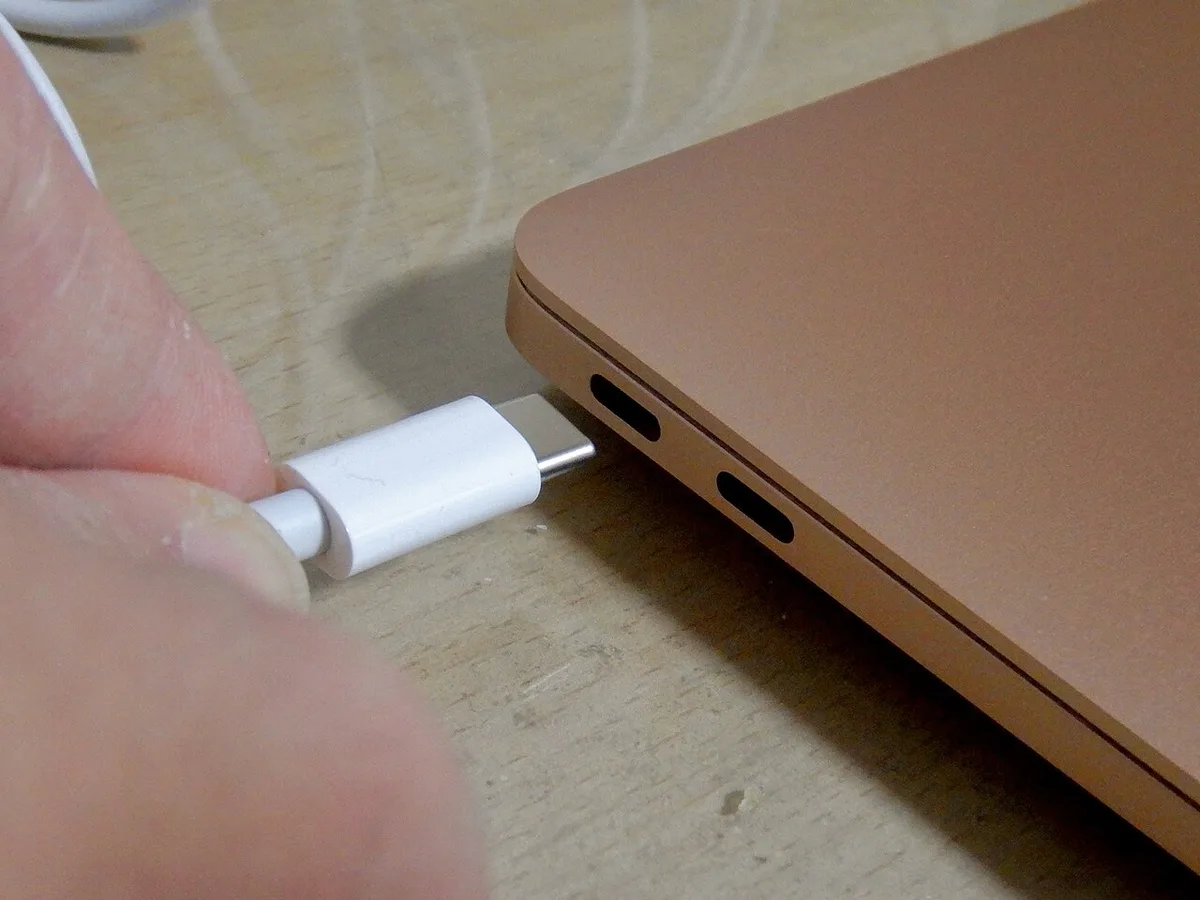
Image source: Wikimedia Commons / KKPCW (CC BY-SA)
What does USB-C actually define?
USB-C defines the connector’s physical design. It includes:
- A reversible plug
- A compact 24-pin connector
- Support for power, data, and alternate modes
- Host and device connection roles
- USB Power Delivery communication
USB-C does not automatically guarantee USB4 or Thunderbolt 4. Manufacturer specifications confirm the capabilities of each individual port.
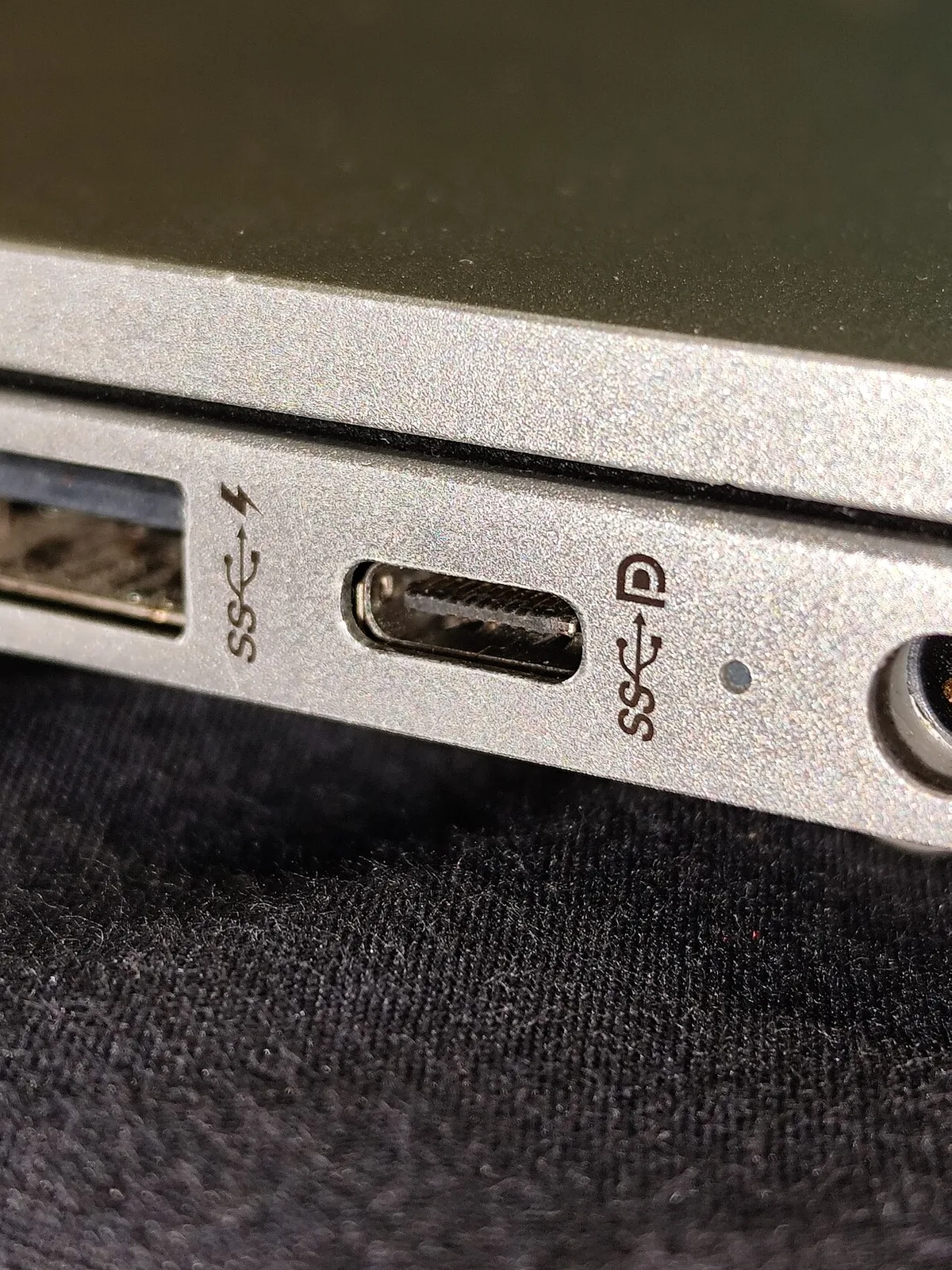
Image source: Wikimedia Commons / Logant547 (CC BY)
USB4 is a data-transfer standard developed through the USB Implementers Forum. It can tunnel USB data, DisplayPort signals, and PCI Express traffic across one connection. USB4 Version 2.0 expands the standard to support up to 80Gbps in supported hardware.
Thunderbolt 4 uses the USB-C connector but sets a stricter baseline. Intel requires features such as 40Gbps bandwidth, PCIe tunneling, and support for multiple displays or one high-resolution display. The exact display configuration still depends on the computer and graphics hardware.
For official terminology, the USB-IF specifications explain how USB-C, USB4, and USB Power Delivery relate to one another.
USB-C vs USB4 vs Thunderbolt 4: Side-by-Side Comparison
The connector looks similar across these standards, but the capabilities differ. This table shows the practical distinction.
| Feature | USB-C | USB4 | Thunderbolt 4 |
|---|---|---|---|
| What it is | Physical connector | USB data standard | Intel connection standard |
| Maximum stated speed | Not defined | Up to 80Gbps | 40Gbps |
| Minimum guaranteed speed | Not defined | Depends on implementation | 40Gbps |
| Charging support | Depends on USB Power Delivery | Depends on USB Power Delivery | Depends on the computer and charger |
| Display support | Depends on port | DisplayPort tunneling | DisplayPort support required |
| PCIe tunneling | Not defined | Supported | Required |
| Daisy chaining | Not defined | Supported by compatible devices | Supported |
| Certification clarity | Varies | Look for USB4 speed labels | Thunderbolt logo and certification |
The biggest difference is consistency. USB-C alone gives you almost no performance information. USB4 provides a defined technology, but manufacturers can choose different speed levels and feature combinations.
Thunderbolt 4 reduces that uncertainty. A certified Thunderbolt 4 port must meet Intel’s minimum requirements. That makes it easier to predict how a dock, external SSD, display, or PCIe accessory will behave.
USB4 can still be an excellent choice. A USB4 40Gbps port may perform similarly to Thunderbolt 4 for many everyday workloads. The difference appears when you need guaranteed PCIe bandwidth, multiple displays, daisy chaining, or broad accessory compatibility.
Another key detail is backward compatibility. USB4 devices generally support older USB standards, but the connection falls back to the slowest shared capability. A USB4 laptop connected to a USB 3.2 drive won’t make that drive operate at USB4 speeds.
Thunderbolt 4 also supports older Thunderbolt versions and USB devices through compatible ports and docks. Compatibility remains conditional on the cable, dock, operating system, and device specifications.
Which Standard Is Best for Your Devices and Workload?
There isn’t one universal winner. The right choice depends on what you connect and how much bandwidth you need.
For charging, phones, and everyday accessories
Basic USB-C is enough for:
- Phone and tablet charging
- Keyboards and mice
- USB flash drives
- Headsets
- Standard webcams
- Casual file transfers
Check the charger’s wattage and the cable’s power rating. A USB-C connector may carry power without supporting fast data transfer.
For external SSDs and large file transfers
Choose USB4 or Thunderbolt 4 for frequent transfers of video files, photo libraries, virtual machines, or large project folders.
A USB4 40Gbps connection can offer strong external SSD performance. Thunderbolt 4 adds more predictable PCIe support, which helps with high-performance storage and professional accessories.
Actual speeds remain lower than the headline link rate. USB protocol overhead, drive hardware, thermal limits, and file size all affect the result.
For docks and multiple displays
Thunderbolt 4 is usually the safer choice for a workstation with multiple peripherals. Its certification requirements cover display support, PCIe tunneling, and minimum bandwidth.
USB4 can handle advanced docking too, but you must verify the dock and laptop specifications together. Look for details covering display count, resolution, refresh rate, USB ports, Ethernet, and power delivery.
For gaming and external graphics
Thunderbolt 4 is the clearer option when you need an external GPU enclosure or another PCIe device. USB4 may support similar hardware, but support varies by implementation.
If you’re connecting only a monitor, keyboard, mouse, and storage drive, USB4 can provide plenty of capacity. If you need specialized PCIe accessories, Thunderbolt 4 offers more predictable compatibility.
Cables, Ports, Docks, and Compatibility: What You Need to Check
A fast port can’t reach its full performance through an under-rated cable. Check the cable’s speed and power markings before troubleshooting the computer or dock.
Use this quick process:
- Read the laptop or desktop port specifications.
- Confirm whether the port supports USB4 or Thunderbolt 4.
- Match the cable to the required data rate.
- Check the cable’s power rating for charging.
- Verify the dock’s display and peripheral limits.
- Test the device directly before adding a hub.
A USB-C cable may support only USB 2.0 data, even though it fits a USB4 port. Some cables are designed mainly for charging. Others support high-speed data but offer limited power delivery.
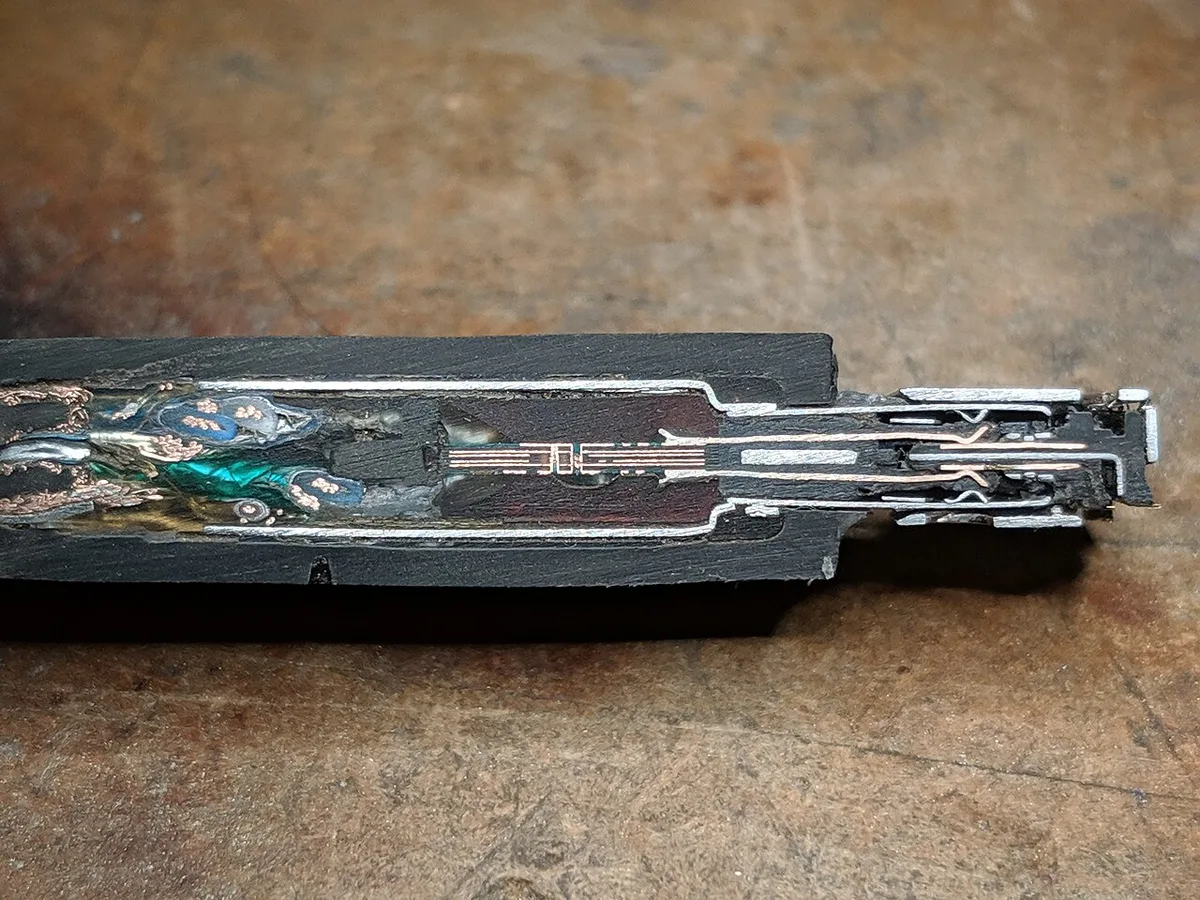
Image source: Wikimedia Commons / TubeTimeUS (CC BY-SA)
An electronically marked cable, often called an e-marked cable, contains a chip that communicates its capabilities to the host and charger. High-power USB Power Delivery cables commonly need this identification.
What should you check on the port?
Look for these markings:
- A lightning-bolt logo for Thunderbolt
- A USB logo with a speed number
- A USB4 label
- A DisplayPort symbol
- A charging or battery icon
- Manufacturer specifications for unmarked ports
Don’t assume every USB-C port on the same laptop works identically. One may support Thunderbolt 4, another may support USB 3.2, and a third may provide charging only.
Intel’s official Thunderbolt technology information provides the certification context behind Thunderbolt 4’s minimum requirements.
Why can a dock reduce performance?
A dock shares the host connection among its ports. An external SSD, two displays, Ethernet, and several USB devices can compete for available bandwidth.
If you need maximum storage speed, connect the SSD directly to the computer. Use a dock for convenience, charging, displays, and ordinary peripherals. Check the dock’s total bandwidth rather than judging it by the number of ports.
USB4 or Thunderbolt 4? A Practical Buying Decision Guide
Choose USB4 if your devices support the speed and features you need. Choose Thunderbolt 4 if you want stricter minimum performance and easier compatibility checks.
Use this decision path:
- If you need charging, basic peripherals, or a phone connection, standard USB-C is enough.
- If you need fast external storage, choose USB4 40Gbps or Thunderbolt 4.
- If you need guaranteed PCIe tunneling, choose Thunderbolt 4.
- If you need multiple displays, verify the exact monitor support before choosing either standard.
- If the port label is unclear, check the computer’s technical specifications instead of guessing from the connector.
USB4 makes sense when the laptop and accessories already support it. It can deliver strong performance without requiring every accessory to carry Thunderbolt certification. Check whether the port offers 20Gbps, 40Gbps, or 80Gbps.
Thunderbolt 4 is the better fit for professional docks, external graphics enclosures, high-speed storage, and complex desk setups. Its 40Gbps ceiling is lower than USB4 Version 2.0’s 80Gbps option, but its minimum requirements are easier to verify.
Don’t pay extra for Thunderbolt 4 if your workload only involves charging and ordinary USB accessories. Match the standard to your actual devices, not to the highest number on the packaging.
Frequently Asked Questions About USB-C, USB4, and Thunderbolt 4
Is USB-C the same as USB4?
No. USB-C describes the physical connector, while USB4 describes a data-transfer standard. A USB-C port may support USB4, USB 3.2, USB 2.0, DisplayPort, Thunderbolt, or charging only.
Check the device specifications to confirm its speed, display, and power capabilities.
Is Thunderbolt 4 faster than USB4?
Not always. Thunderbolt 4 supports 40Gbps, while USB4 can support 20Gbps, 40Gbps, or 80Gbps. Thunderbolt 4 focuses on stricter minimum requirements, including PCIe tunneling and display support.
A USB4 40Gbps connection can match Thunderbolt 4’s headline bandwidth.
Can a Thunderbolt 4 cable work with USB4?
Yes, Thunderbolt 4 cables can generally connect compatible USB4 devices. The final speed and features depend on both devices and the cable. A USB4 connection may operate at its supported USB4 rate rather than gaining every Thunderbolt feature.
Do all USB-C cables support 40Gbps?
No. Many USB-C cables support USB 2.0 data rates or charging only. For 40Gbps performance, choose a cable clearly rated for USB4 40Gbps or Thunderbolt 4.
Check the cable’s power rating too if you’re charging a laptop through the same connection.
Can USB4 connect two monitors?
USB4 can support multiple displays through DisplayPort tunneling, but the result depends on the laptop, graphics hardware, dock, and monitors. Verify the supported display count, resolution, and refresh rate. A USB4 port alone doesn’t guarantee two external 4K displays.
Final Verdict: Which Connection Should You Choose?
USB-C is the connector. USB4 and Thunderbolt 4 are the technologies that determine what happens through it.
Choose basic USB-C when you need simple charging or everyday accessories. Choose USB4 when you want modern high-speed data and your devices clearly support the required rate.
Choose Thunderbolt 4 for the most predictable workstation setup. It’s especially useful for professional storage, PCIe accessories, external graphics, multiple displays, and docking stations.
The safest rule is simple: compare the port, cable, dock, and peripheral as one system. The fastest label on a single component won’t overcome a slower cable or an under-specced port.