
Portable SSD vs HDD vs Flash Drive: Which One Should You Buy?
Portable SSD vs HDD vs Flash Drive: Which One Should You Buy? The right choice depends on what you store, how often you move it, and how much you value speed or capacity. A portable solid-state drive is usually best for frequent transfers and demanding files.
An external hard disk drive suits large backups, while a USB flash drive works well for quick, occasional file sharing.
A solid-state drive stores data on NAND flash memory, while an HDD records it magnetically on spinning platters. USB flash drives also use flash memory, but their controllers and sustained performance vary widely. As of 2026, USB 3.2 and USB-C compatibility matter as much as the drive type, so let’s start with how each option works.
Portable SSD vs HDD vs Flash Drive: Which One Should You Buy?
Portable SSD vs HDD vs Flash Drive: Which One Should You Buy?
Portable SSDs are best for speed, quiet operation, and travel. External HDDs offer the most storage for your money. USB flash drives suit small, occasional file transfers.
Choose an SSD for active work. Pick an HDD for large backups. Use a flash drive for convenience.
How Portable SSDs, External HDDs, and USB Flash Drives Work
The three devices store data in different ways. That design affects speed, durability, capacity, heat, and failure risks.
Portable SSD: Fast, Silent, and Shock-Resistant
A portable solid-state drive uses NAND flash memory, which stores data electronically without moving parts. It can read and write files quickly because there are no platters or read heads to position.
That makes an SSD a strong fit for:
- Video editing and large media files
- Frequent laptop backups
- Game libraries
- Working directly from an external drive
- Travel and mobile work
Portable SSDs often use USB-C with USB 3.2 Gen 2 or faster interfaces. The drive can advertise speeds above 1,000 MB/s, but your computer, cable, and port must support that rate. Sustained writes may also slow after the cache fills or when the enclosure gets hot.
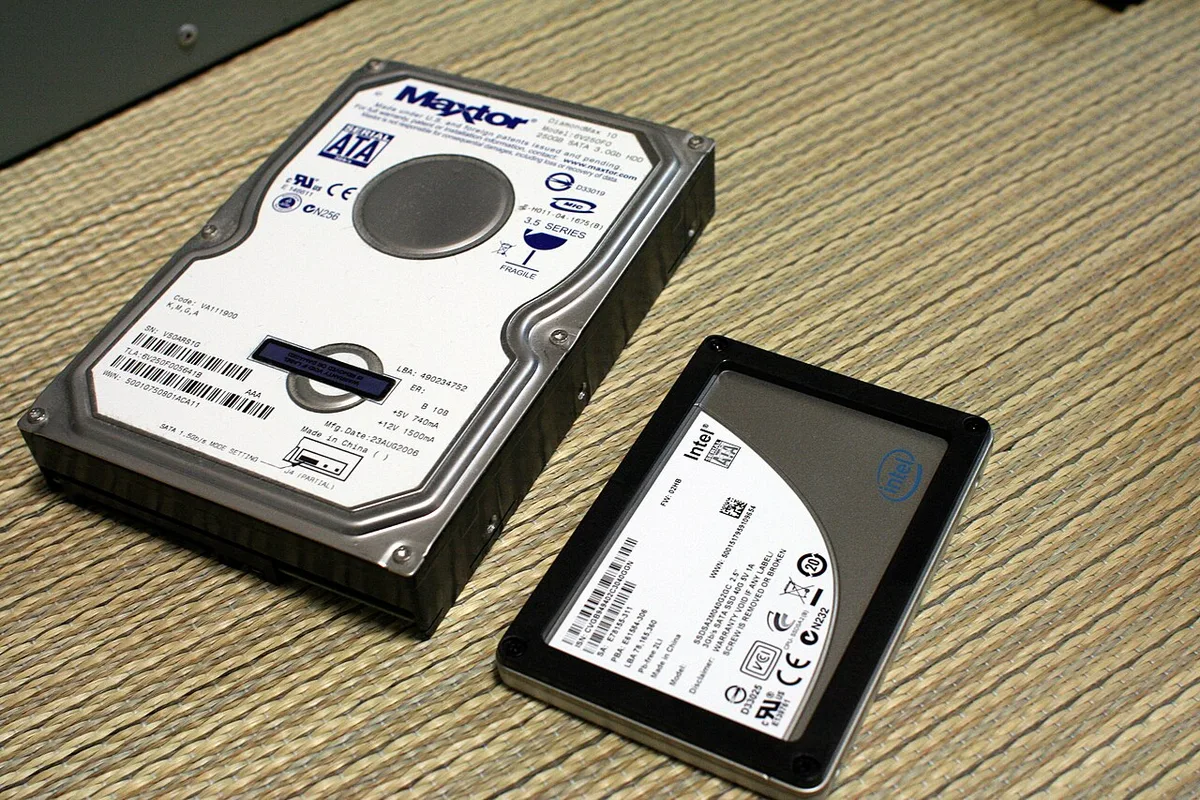
Image source: Wikimedia Commons / machu. (CC BY-SA)
External HDD: High Capacity at the Lowest Cost
An external hard disk drive uses spinning magnetic platters and mechanical read/write heads. Common portable models spin at 5,400 RPM, while larger desktop drives may use faster mechanisms and an external power adapter.
HDDs are slower and more sensitive to drops while operating. They still make practical sense for large photo libraries, video archives, and backup copies because they usually offer a lower price per terabyte.
USB Flash Drive: Small and Convenient
A USB flash drive also uses NAND flash memory, but it usually has a smaller controller, less cooling, and less consistent sustained performance than a portable SSD. Some models are fast for short transfers, then slow sharply during long writes.
Use one for documents, installers, presentations, or temporary file sharing. Don't treat a cheap flash drive as your only backup. The USB Implementers Forum explains the interface standards that determine compatibility and bandwidth.
Portable SSD vs HDD vs Flash Drive: Side-by-Side Comparison
The best option depends on which trade-off matters most. Speed, capacity, durability, and price rarely peak in the same device.
| Factor | Portable SSD | External HDD | USB flash drive |
|---|---|---|---|
| Typical strength | Fast active work | Affordable high capacity | Quick file sharing |
| Moving parts | None | Spinning platters and heads | None |
| Speed consistency | Usually high | Lower and steadier | Varies widely |
| Drop resistance | Good when disconnected | Lower, especially while running | Good physically, but connectors can break |
| Capacity value | Moderate | Best | Usually weakest at high capacities |
| Best connection | USB-C, USB 3.2, USB4 | USB-A or USB-C | USB-A or USB-C |
| Main weakness | Higher cost per terabyte | Slower and more fragile | Uneven quality and endurance |
A portable SSD usually delivers the best everyday experience. Files open quickly, transfers finish sooner, and the drive stays silent. It also handles movement better than an operating HDD, though no portable drive is immune to impact or data loss.
An HDD wins when you need several terabytes for backups or archives. Its lower cost lets you maintain more backup copies. The trade-off is slower access and greater sensitivity to shock, vibration, and rough handling.
A flash drive wins on size and simplicity. It fits on a keyring and works well when you need to move a few files between compatible computers. Its small size doesn't guarantee reliability, speed, or secure storage.
Manufacturer specifications provide useful maximum speeds, but real results depend on file size, cable quality, computer ports, available cache, and drive capacity. A large video file may transfer quickly, while thousands of small documents can take much longer.
Which Storage Device Is Best for Your Use Case?
Your workflow should decide the device, not a headline speed rating. If you work with large files every day, choose a portable SSD. If you mainly need a large backup target, choose an external HDD.
If you move small files occasionally, a USB flash drive is usually enough.
Best for Laptop Backups and Everyday File Storage
Choose a portable SSD if you back up a laptop frequently or carry the drive between locations. It reduces waiting during repeated transfers and tolerates normal travel better than an operating HDD.
Choose an HDD if the backup contains hundreds of gigabytes or several terabytes. The lower cost may let you keep one local copy and another stored elsewhere.
Best for Photo, Video, and Large-File Workflows
A portable SSD is the practical choice for photographers, videographers, and content creators working with RAW photos or 4K video. It offers faster access and smoother editing than a portable HDD.
For long-term media storage, an HDD can still be useful. Store the archive on the HDD, then keep a second copy away from the computer. Don't rely on a single drive for irreplaceable work.
Best for Gaming and Console Storage
Choose a portable SSD for PC games, fast loading, and moving large installations. Console compatibility depends on the platform and the specific storage requirement, so check the official PlayStation support or Xbox documentation before formatting.
A flash drive is rarely a good game library. Capacity, sustained write speed, and durability are usually less suitable.
Best for Travel and Occasional Transfers
A USB flash drive is convenient for a few documents, presentations, or installers. Choose a reputable model and eject it safely after every transfer.
For a large travel library, use a portable SSD instead. It offers more usable capacity and generally better sustained performance in a compact enclosure.
Cost, Capacity, Speed, and Durability: What You’re Really Getting
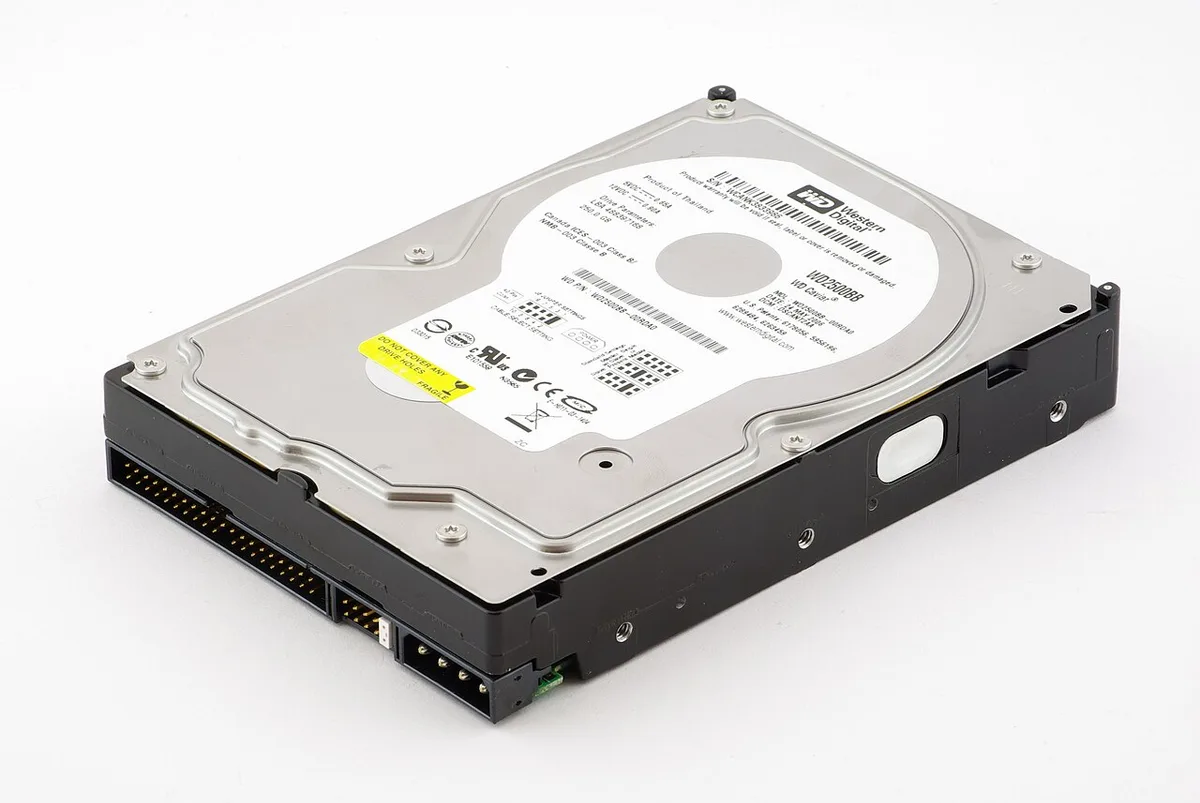
Image source: Wikimedia Commons / Christian Jansky (CC BY-SA)
Storage prices change by capacity, interface, warranty, and sales channel. Compare price per terabyte, not just the sticker price. A low-cost flash drive may look attractive, but poor sustained performance can make large transfers frustrating.
| Priority | Better fit | Why |
|---|---|---|
| Lowest cost for several terabytes | External HDD | Strong capacity per dollar |
| Fast repeated transfers | Portable SSD | Low latency and high throughput |
| Smallest basic file carrier | USB flash drive | Compact and simple |
| Quiet operation | Portable SSD or flash drive | No spinning mechanism |
| Long archive capacity | External HDD | Affordable large capacities |
| Frequent travel | Portable SSD | Better resistance to movement |
Interface limits matter. A USB 3.2 Gen 2 port can support up to 10 Gb/s of signaling bandwidth, but overhead and device design reduce the usable transfer rate. A fast SSD connected through an older USB port won't reach its advertised maximum.
An HDD's performance also depends on platter speed, file location, and fragmentation. It may transfer a large sequential file reasonably well, then slow down when handling many small files.
Durability needs a realistic definition. SSDs and flash drives resist mechanical shock because they have no moving parts. Their memory cells and controllers can still fail, and recovery may be difficult.
HDDs can provide dependable backup service when handled carefully, powered down before travel, and protected from drops.
For sensitive files, encryption and a strong password matter more than drive type. NIST's media sanitization guidance also supports planning for secure erasure before disposal or resale. No portable drive should hold the only copy of important data.
Buying Mistakes and Setup Tips to Avoid Data Loss
The biggest mistake is treating portable storage as a backup by itself. A drive can fail, disappear, or become corrupted without warning. Keep at least three copies of important files, on two storage types, with one copy stored elsewhere.
Image source: Wikimedia Commons / Oneiroi734
Before formatting a drive, confirm that it contains no needed files. Choose exFAT for broad Windows and macOS compatibility, NTFS for a Windows-only setup, or APFS for a Mac-focused workflow. FAT32 can create problems because it limits individual files to 4GB.
Use the included or certified cable when possible. A USB-C connector doesn't guarantee USB 3.2 or USB4 performance. Check the computer port, cable rating, and drive specification together.
Avoid these common errors:
- Unplugging the drive while files are copying
- Treating a flash drive as permanent archival storage
- Carrying an external HDD while its platters are spinning
- Filling an SSD completely
- Ignoring repeated disconnects or corrupted files
- Buying suspiciously cheap drives with unverified capacities
- Keeping every backup in the same room
If a drive isn't recognized, try another port and cable first. Then check Disk Management in Windows or Disk Utility on macOS. Don't immediately format the drive if it contains important data.
Formatting can make recovery harder.
Frequently Asked Questions
Is a portable SSD better than an external HDD?
A portable SSD is better for frequent transfers, travel, active editing, and applications that need quick access. An external HDD is better for affordable, high-capacity backups. Choose the SSD when speed and shock resistance matter most.
Choose the HDD when several terabytes of storage matter more than fast loading.
Are USB flash drives reliable for backups?
USB flash drives are suitable for temporary copies and small file transfers, but they shouldn't be your only backup. Quality varies widely, and some models slow down during large writes. Use a verified-capacity drive, eject it safely, and keep another copy on an SSD, HDD, or secure cloud service.
How long do portable SSDs, HDDs, and flash drives last?
No storage device has a guaranteed lifespan. SSDs and flash drives can wear through repeated writes, while HDDs can develop mechanical faults or bad sectors. Use health monitoring where supported, replace drives showing errors, and refresh important data onto new media before the old device becomes unreliable.
Should I buy a 1TB or 2TB portable drive?
Choose 1TB for documents, moderate photo collections, and routine laptop backups. Choose 2TB if you store video, games, RAW images, or several backup generations. Leave free space for growth and performance.
Buying slightly more capacity now can cost less than replacing a nearly full drive later.
Can I use one external drive with Windows and Mac?
Yes, format the drive as exFAT when you need regular read and write access on both systems. NTFS works best for Windows, while APFS suits Mac workflows. Reformatting erases existing data, so copy files elsewhere and verify the backup before changing the file system.
Final Recommendation: Which One Should You Buy?
Choose a portable SSD if you work with large files, move the drive often, or want the quickest everyday experience. It costs more per terabyte, but the speed, quiet operation, and compact design suit active storage.
Choose an external HDD if your priority is affordable capacity. It's the sensible choice for large backups, media archives, and secondary copies. Store it carefully, disconnect it before moving it, and don't depend on a single unit.
Choose a USB flash drive if you only need to carry small files between compatible devices. Treat it as a transfer tool, not a complete backup strategy.
The simple decision rule is:
- If speed matters most, buy a portable SSD.
- If capacity per dollar matters most, buy an external HDD.
- If pocket-sized convenience matters most, buy a USB flash drive.
- If the data can't be replaced, buy two different storage devices and keep one copy elsewhere.
Before purchasing, check capacity, USB interface, connector type, operating-system compatibility, warranty, and encryption options. Then build the backup routine around the device. Good storage isn't just fast or affordable.
It protects your files when something goes wrong.