What Is a USB-C Hub and Do You Actually Need One?
If your laptop has only two USB-C ports, connecting a monitor, mouse, charger, and flash drive gets awkward fast. What Is a USB-C Hub and Do You Actually Need One? A USB-C hub adds several connections through one compatible USB-C port.
The right choice depends on what your computer supports and what you need to connect.
USB-C hubs can carry data, video, power, or a mix of all three. USB 3.2 Gen 2 supports up to 10 Gbps, but shared ports may divide that bandwidth. As of 2026, checking the host port matters more than counting ports on the hub.
Start by identifying what your device can actually do.
What Is a USB-C Hub and Do You Actually Need One?
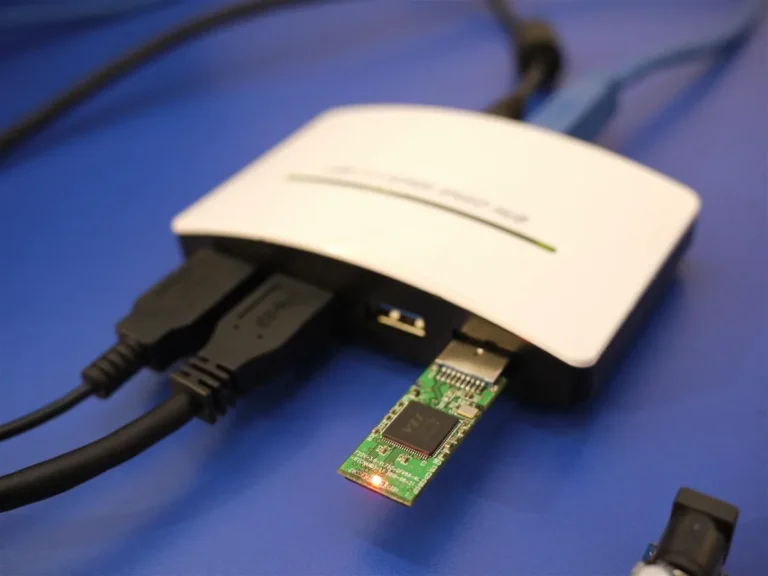
A USB-C hub expands one compatible USB-C port into several connections.
It may add USB-A, HDMI, Ethernet, SD, or charging ports.
You need one if your device lacks the ports you regularly use.
You don’t need one if your existing connections already cover your setup.
Check Your Device Before Buying a Hub
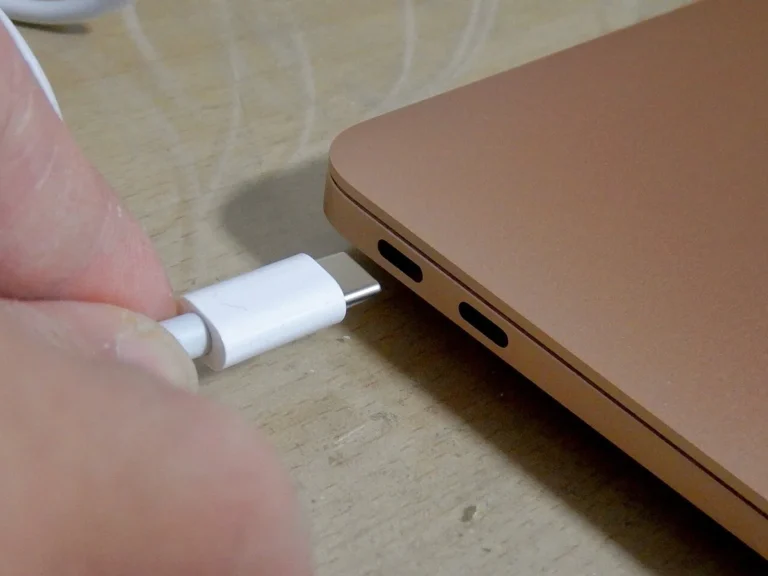
The first step is checking the USB-C port on your laptop, tablet, or desktop computer. USB-C describes the connector shape, not its full capabilities. One port may support charging and data, while another may also handle video or Thunderbolt connections.
Look for the device’s technical specifications, not just the USB-C symbol. Confirm these details:
- USB data support
- DisplayPort Alternate Mode for video
- USB Power Delivery input
- Thunderbolt 3, Thunderbolt 4, or USB4 support
- Maximum display resolution and refresh rate
- The number of monitors supported
A USB-C port with a lightning-bolt symbol often indicates Thunderbolt, but symbols vary by manufacturer. Some devices use a small display icon for video output. If the specifications don’t mention DisplayPort Alternate Mode or video output, an HDMI port on the hub may not work.
A USB-C hub can’t add features the host device doesn’t provide. If your laptop’s port supports data only, the hub won’t create video output. The USB Implementers Forum maintains the core USB specifications and terminology.
Choose the Ports and Performance You Actually Need
Choose a hub by listing the devices you’ll connect at the same time. A photographer may need an SD card reader, USB-A ports, and fast storage. A home-office user may need HDMI, Ethernet, a keyboard, and a mouse.
| Need | Hub feature to check |
|---|---|
| Older accessories | USB-A ports |
| External monitor | HDMI or DisplayPort output |
| Wired internet | Gigabit Ethernet |
| Camera cards | SD or microSD reader |
| Laptop charging | USB-C Power Delivery passthrough |
| Fast storage | USB 3.2 Gen 2 or faster |
Speed ratings need careful reading. USB 2.0 reaches 480 Mbps, while USB 3.2 Gen 1 reaches 5 Gbps. USB 3.2 Gen 2 reaches 10 Gbps, though real file transfers run below those headline figures.
A hub’s ports may share the bandwidth available through its single host connection. Connecting a fast external drive and several accessories can reduce performance. For everyday keyboards, mice, printers, and flash drives, USB 5 Gbps is usually enough.
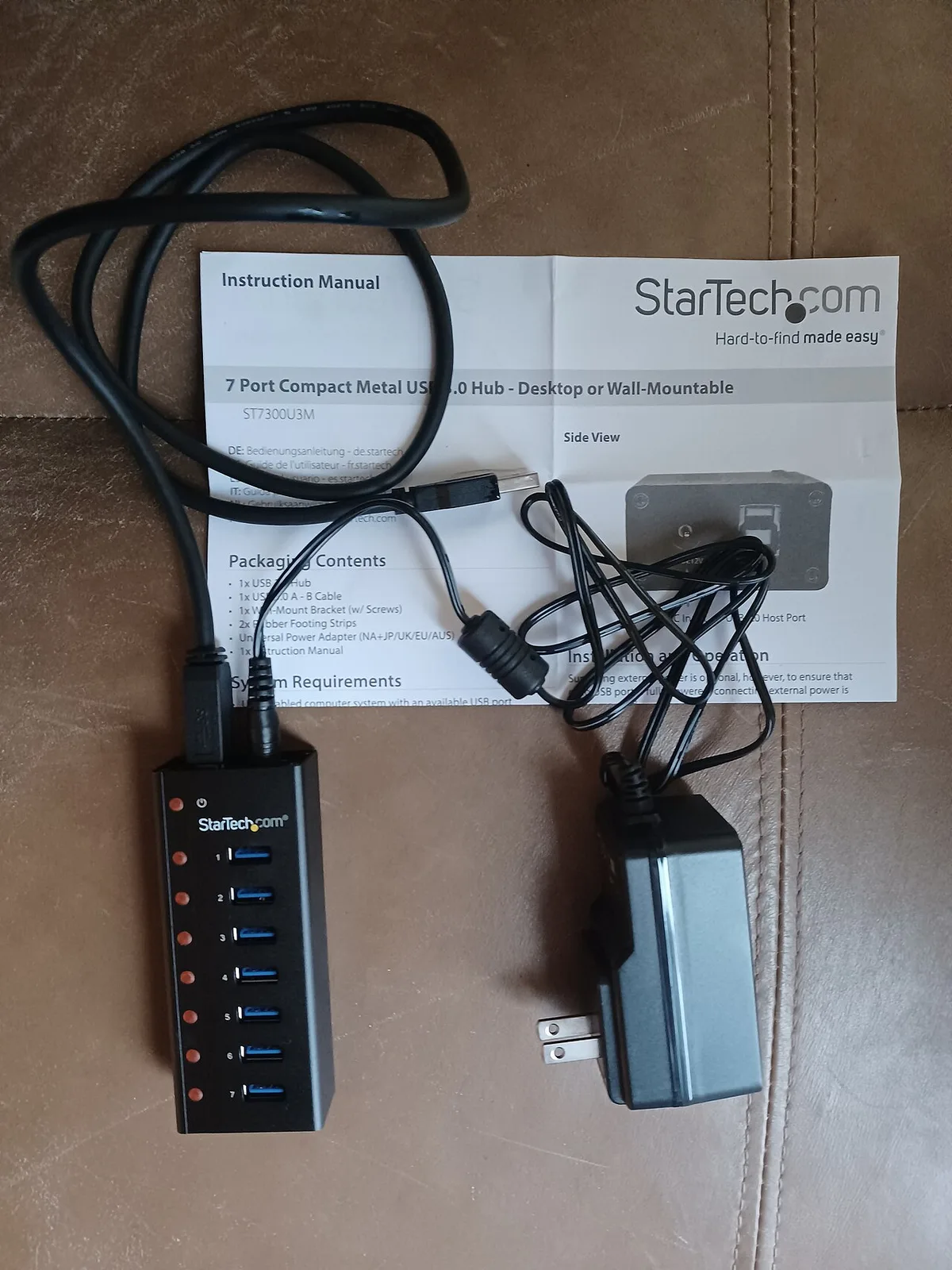
Image source: Wikimedia Commons / OnBeyondZebrax (CC BY-SA)
Power also matters. A bus-powered hub draws energy from the computer, while a hub with Power Delivery passthrough accepts a charger. If you plan to charge a laptop through the hub, check the hub’s maximum input and its power loss.
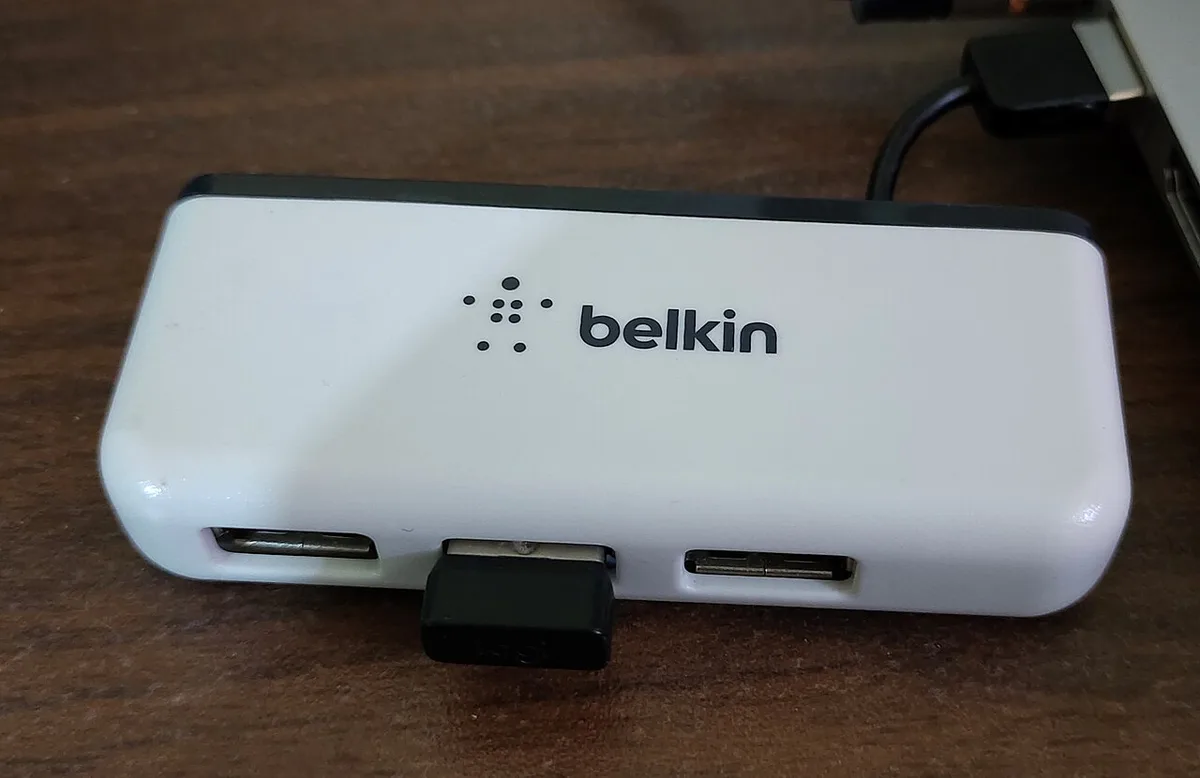
Image source: Wikimedia Commons / Kskhh (CC BY-SA)
Decide Which USB-C Hub Setup Fits Your Workflow
Your best decision depends on what problem you’re trying to solve. Use this simple rule: if you need only one extra connection, buy a single-purpose adapter. If you need several connections at once, a multiport USB-C hub makes more sense.
You need more USB ports
Choose a compact bus-powered hub if you’re adding a keyboard, mouse, printer, or flash drive. These accessories usually need modest power. Avoid filling every port with high-draw devices unless the manufacturer confirms enough power.
You need an external monitor or projector
Choose a hub with HDMI or DisplayPort output only after confirming your USB-C port supports DisplayPort Alternate Mode. Check the target resolution and refresh rate. A hub that supports 4K at 30 Hz may not provide 4K at 60 Hz.
You need charging, Ethernet, storage, or SD access
Choose a hub with USB-C Power Delivery, Gigabit Ethernet, and the card slots you actually use. Check whether the charging port is input-only. Many hubs have USB-C ports that transfer data but don’t accept laptop power.
You need a permanent desk setup
A docking station may suit you better than a small travel hub. Docks usually offer more ports, stronger power delivery, multiple-display support, and an external power supply. They’re less convenient to carry but better for a fixed workstation.
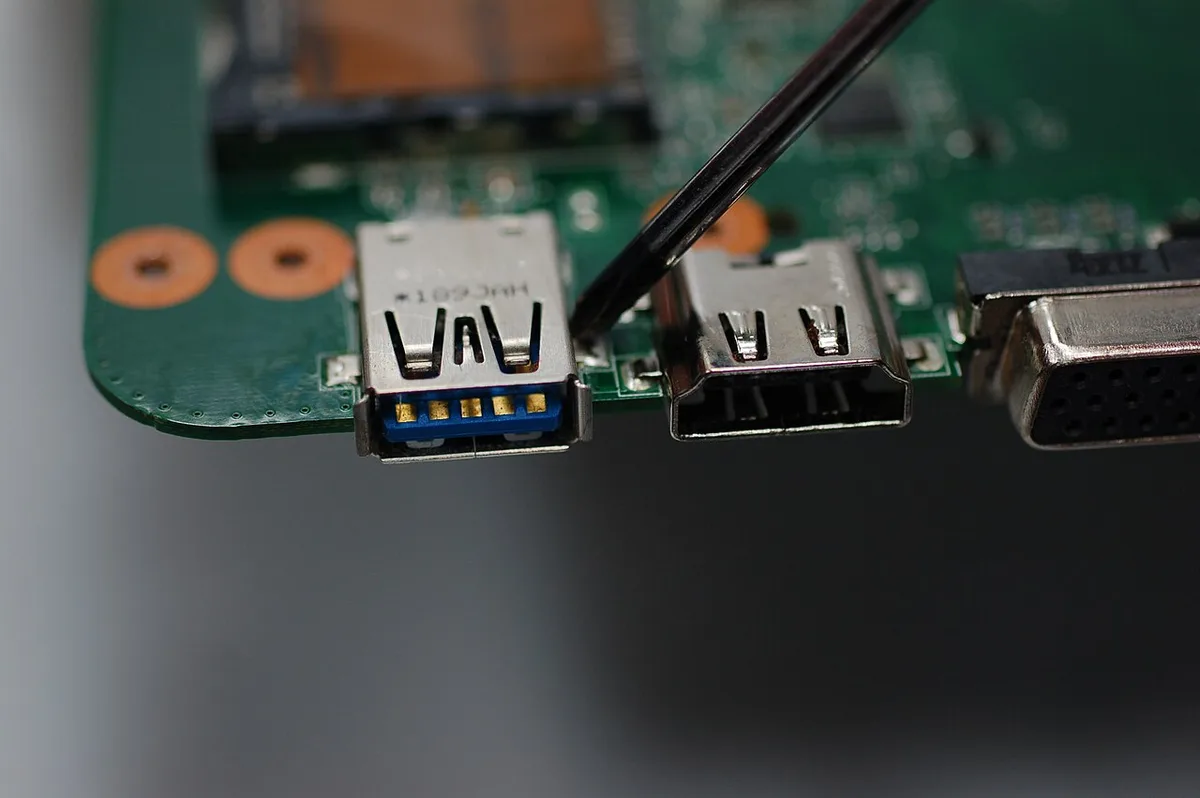
Image source: Wikimedia Commons / Disk Depot Ltd. (CC BY-SA)
USB-C Hub vs Docking Station, Adapter, and Thunderbolt Dock
A USB-C hub is the simplest expansion option, but it isn’t the same as every USB-C dock. The right choice depends on how many devices you connect and how much performance you need.
| Option | Best for | Main limitation |
|---|---|---|
| Single-purpose adapter | One HDMI, Ethernet, or USB connection | Adds only one function |
| USB-C hub | Travel and everyday accessories | Limited power and shared bandwidth |
| USB-C docking station | Permanent desk setups | Larger and usually needs external power |
| Thunderbolt dock | Fast storage and multiple displays | Requires compatible Thunderbolt hardware |
Use a USB-C hub if you move between locations or need a few extra ports. Choose a docking station if your laptop becomes a desktop replacement every day. A Thunderbolt dock makes sense only when both the computer and connected devices support Thunderbolt.
USB4 and Thunderbolt connections can offer higher performance, but the host device, cable, hub, and accessories must all support the required standard. A faster label alone doesn’t guarantee faster results.
Avoid buying a dock simply because it has more ports. Extra connections won’t help if your laptop cannot provide the required video signal, power, or bandwidth. Match the dock to your actual workflow first.
Set Up and Test a USB-C Hub Without Compatibility Problems
Start with the host device turned off if you’re connecting several accessories for the first time. Plug the hub into the computer’s USB-C port, then connect the charger to the hub’s Power Delivery port if it has one.
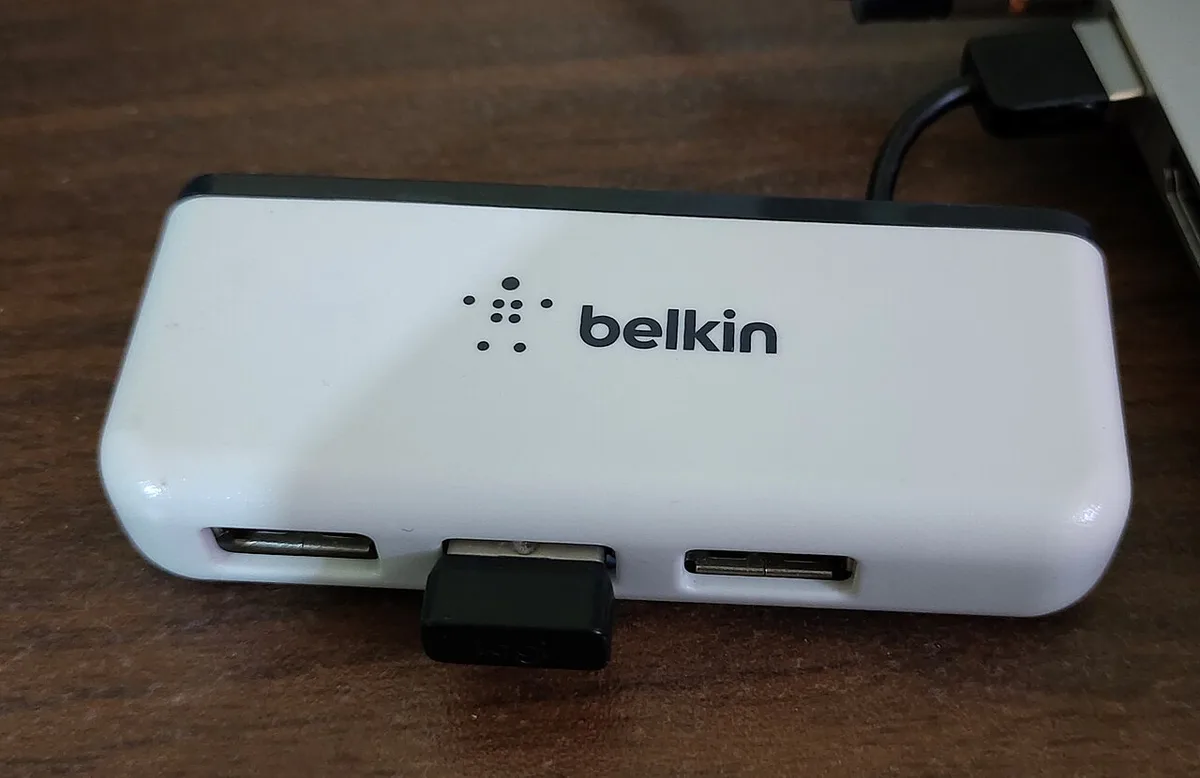
Image source: Wikimedia Commons / Kskhh (CC BY-SA)
Connect the display before adding storage or other high-bandwidth accessories. This makes troubleshooting easier if the screen doesn’t appear.
Use this setup order:
- Check that the hub’s host cable is fully inserted.
- Connect the USB-C charger to the hub’s PD input.
- Connect the monitor or projector.
- Add the keyboard, mouse, and other USB devices.
- Connect Ethernet if needed.
- Insert an SD card or external drive last.
- Open the operating system’s display settings.
- Select mirrored or extended desktop mode.
If the monitor stays black, remove every accessory except the display. Test the hub with another compatible cable or connect the monitor directly to the computer. This helps separate a hub problem from a cable, port, or display-setting problem.
Check charging under normal workload. A hub may pass through less power than the charger supplies because it uses some energy for its own electronics. Manufacturer specifications should state the available output, not only the charger’s total wattage.
For external storage, safely eject the drive before unplugging the hub. Sudden removal can corrupt open files or damage the file system. Keep the hub’s vents clear, especially when several devices draw power at once.
Common USB-C Hub Mistakes That Cause Problems
The most common mistake is assuming every USB-C port supports the same functions. Check the computer’s specifications before blaming the hub. A port may support charging and data but lack video output.
Another frequent error is using the wrong cable. A USB-C charging cable may transfer data slowly or not support video at all. For displays and fast storage, use a cable rated for the required data speed and power level.
Watch for these problems:
- The monitor works only when connected directly
- The laptop charges slowly through the hub
- An external drive disconnects during transfers
- Ethernet works but USB devices stop responding
- A second monitor mirrors instead of extending
- The hub fails after the computer wakes from sleep
If one device fails, disconnect everything else first. Reconnect the accessories one at a time. If the issue follows one cable or peripheral, replace that item instead of replacing the whole hub.
Heat can also cause instability. Keep the hub uncovered and avoid placing it under papers, clothing, or a laptop. If high-power accessories cause repeated disconnects, switch to an externally powered dock.
Frequently Asked Questions
Can a USB-C hub charge a laptop?
A USB-C hub can charge a laptop when it has USB-C Power Delivery passthrough and the computer accepts charging through that port. The hub may reduce the available wattage because its electronics use some power. Check the hub’s output rating and your laptop’s required charger wattage.
Can a USB-C hub run two monitors?
A USB-C hub can run two monitors only when the host device, hub, operating system, and displays support that setup. Some hubs support one extended display and mirror the second. Others require DisplayLink software or Thunderbolt technology for multiple independent screens.
Are all USB-C ports and hubs the same?
No. USB-C describes the connector shape, not its speed or functions. Ports can differ in data rate, charging support, video output, USB4 support, and Thunderbolt compatibility.
Read the host device and hub specifications before connecting a monitor or high-speed drive.
Do you need a powered USB-C hub?
You need a powered hub when several accessories draw substantial power or when you’re charging the laptop through the hub. A bus-powered hub usually works for a mouse, keyboard, and flash drive. External storage, card readers, and multiple displays may need more available power.
Final Decision Guide: Do You Actually Need a USB-C Hub?
You probably need a USB-C hub if your laptop lacks ports for accessories you use regularly. Choose one when you need several connections, such as HDMI, USB-A, Ethernet, SD, or charging, through one USB-C port.
You may not need one if your current ports already handle your monitor, storage, and peripherals. A single-purpose adapter is simpler when you only need one extra connection.
Use this decision guide:
- Need one extra port: choose a single-purpose adapter.
- Need several travel connections: choose a compact USB-C hub.
- Need a daily desk setup: choose a powered docking station.
- Need multiple high-resolution displays: check Thunderbolt, USB4, or DisplayLink requirements.
- Need laptop charging: confirm Power Delivery passthrough and wattage.
- Need fast storage: check the hub’s USB speed and shared bandwidth.
The safest choice starts with the host device. Match the hub to your actual ports, display needs, power requirements, and daily workflow.