
Why Is My USB-C Hub Not Working? 7 Fixes
Why Is My USB-C Hub Not Working? 7 Fixes usually comes down to power, compatibility, a faulty cable, or a problem with one connected device. The hub may still provide charging while its data or display functions fail. A quick isolation test can show which part is responsible.
USB-C hubs support different features, even when their connectors look identical. USB 3.2 Gen 1 supports data speeds up to 5 Gb/s, while video requires DisplayPort Alternate Mode. As of 2026, checking the port, cable, charger, and hub specifications remains the fastest path to a reliable fix.
Why Is My USB-C Hub Not Working? 7 Fixes
Why Is My USB-C Hub Not Working? 7 Fixes
A USB-C hub usually fails because of insufficient power, an unsupported port, a damaged cable, or a faulty accessory. Disconnect every device, reconnect the hub directly, and test one function at a time. Check whether the host port supports data, charging, or video.
Replace the cable if the connection remains unstable.
Identify What Has Failed: Power, Data, Display, Charging, or One Peripheral
Start by identifying exactly what stopped working. A hub that charges your laptop but fails to detect a USB drive has a different problem from a hub that shows no display output.
Use this quick symptom guide:
| What you notice | Most likely area |
|---|---|
| No connected devices work | Hub connection, host port, or power |
| USB ports work but HDMI fails | DisplayPort Alternate Mode or display settings |
| Laptop does not charge | Power Delivery, charger, or hub input |
| Only one accessory fails | Accessory, port, or compatibility |
| Hub disconnects repeatedly | Cable, heat, power draw, or hardware |
First, disconnect all accessories from the hub. Reconnect the hub directly to the laptop, tablet, or desktop computer. Avoid another adapter, extension, or second hub during this test.
If the hub has a status light, check whether it turns on. No light can indicate a missing power connection, although some bus-powered hubs operate without one.
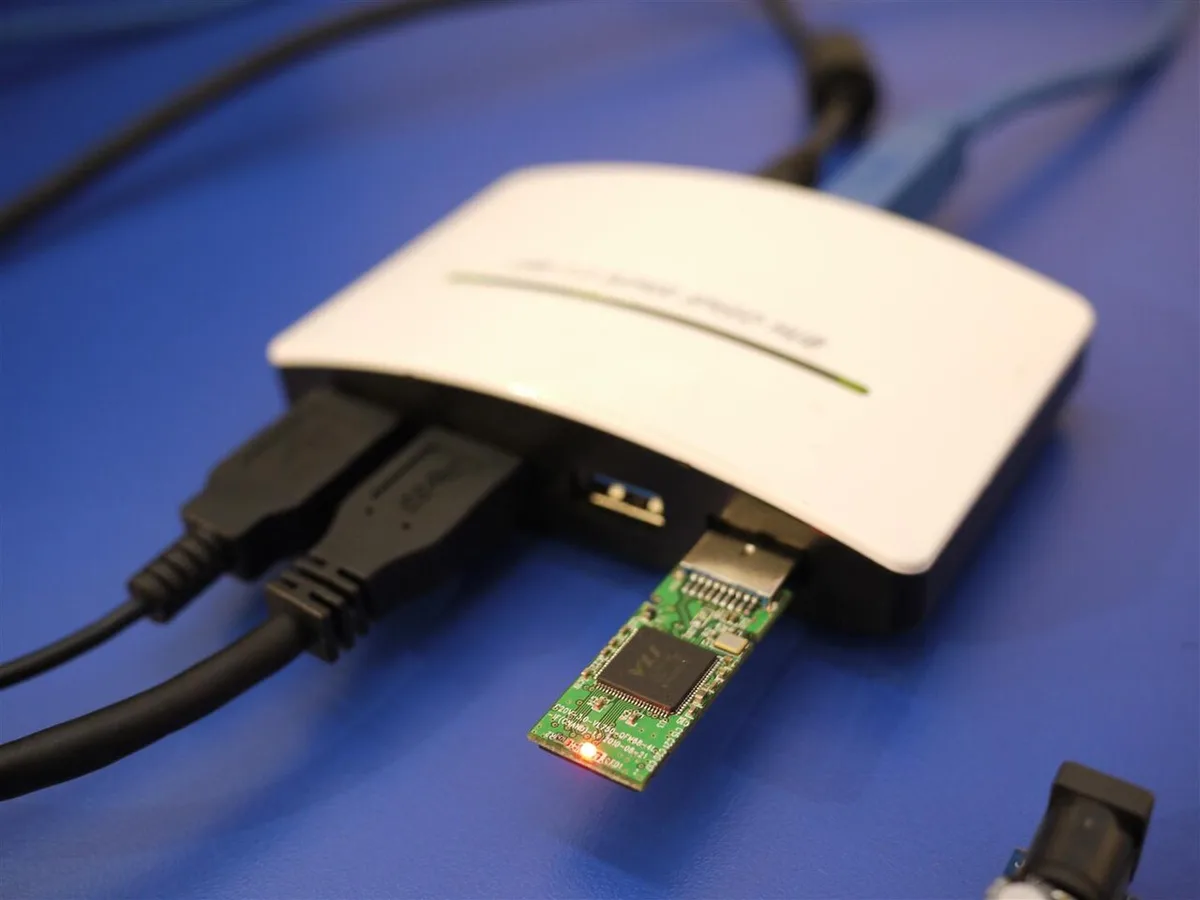
Image source: Wikimedia Commons / VIA Gallery from Hsintien, Taiwan (CC BY)
Next, connect one simple device, such as a wired mouse or keyboard. If that works, test the display, storage, Ethernet, and charging functions separately. This prevents one high-power or defective accessory from making the whole hub appear dead.
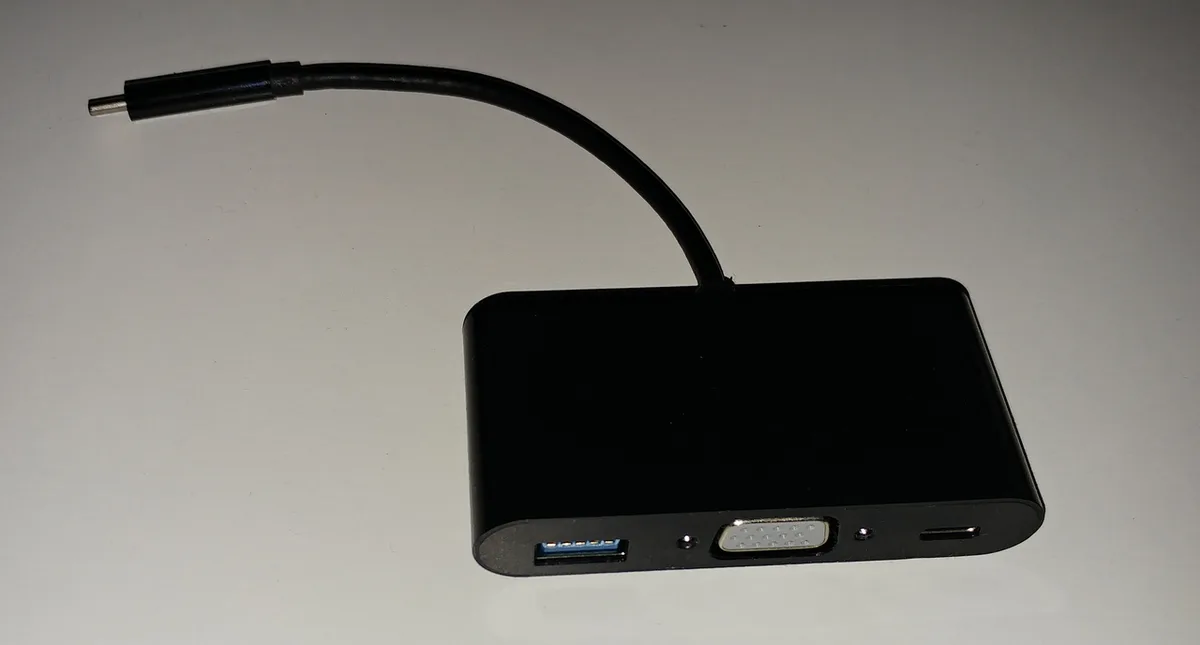
Image source: Wikimedia Commons / Dieter1968 (CC BY-SA)
If nothing works, test the hub on another compatible computer. If it fails there too, suspect the hub or its host cable. If it works elsewhere, focus on the original computer’s port, operating system, drivers, or feature support.
Check USB-C Compatibility, Power Delivery, Cable Support, and Port Limits
USB-C describes the connector shape, not every feature available through it. One USB-C port may support charging and data, while another may lack video output entirely.
Check the specifications for these four items:
- The host device’s USB-C port
- The hub’s upstream connection
- The USB-C host cable
- The charger and power adapter
For external monitors, the host port must support DisplayPort Alternate Mode, USB4, or Thunderbolt with display output. A USB-C port that only supports charging cannot send a video signal through an HDMI adapter.
Power Delivery is separate from data and video. A hub may need a charger connected to its power input before it can run an external drive, Ethernet adapter, or several USB accessories. Manufacturer specifications should state the maximum pass-through wattage and downstream power.
Cable capability matters too. A charge-only USB-C cable may power a hub but carry no useful data. Other cables support USB 2.0 speeds but lack the bandwidth needed for high-resolution displays or fast storage.
| Requirement | What to verify |
|---|---|
| Data | USB 2.0, USB 3.2, USB4, or Thunderbolt support |
| Video | DisplayPort Alternate Mode or another supported display standard |
| Charging | USB Power Delivery input and wattage |
| Cable | Data speed, video support, and power rating |
The USB Implementers Forum maintains the USB Type-C and USB Power Delivery standards. Use the official specifications when a manufacturer’s product page gives vague claims such as “full-featured USB-C.”
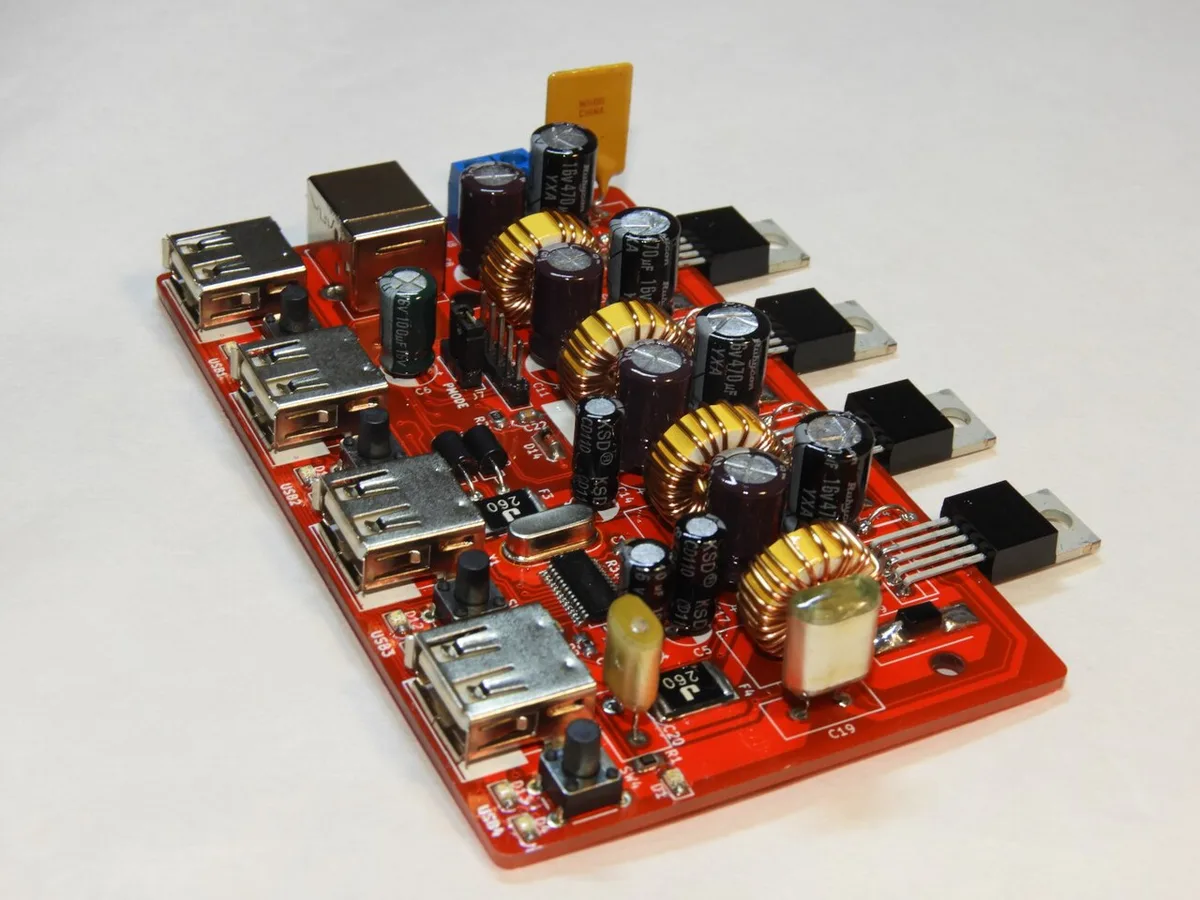
Image source: Wikimedia Commons / Dilshan Jayakody from Maharagama, Sri Lanka (CC BY-SA)
7 Fixes for a USB-C Hub That Isn’t Working
Work through these fixes in order. Each step removes a common cause without changing several variables at once.
1. Disconnect every device and reconnect the hub directly
Remove all accessories from the hub. Unplug the hub from the host device, wait a few seconds, then reconnect it directly. Test a basic USB device before adding anything else.
2. Try another USB-C port and restart the host device
Some computers have ports with different capabilities. Try another port, then fully restart the laptop or tablet. A restart can clear a failed USB device connection or display handshake.
3. Replace the USB-C host cable
If the cable is detachable, use a known-good cable rated for data and the required power. A cable that only supports charging will not carry USB data or display signals.
4. Connect the correct charger to the hub
Plug the charger into the hub’s USB-C Power Delivery input, not its data port. Confirm that the charger supplies enough wattage for the laptop and attached accessories.
5. Test each hub function separately
Test USB, HDMI, DisplayPort, Ethernet, audio, and SD card functions one by one. If only one port fails, the hub may be partly working with a damaged or incompatible port.
6. Update software and firmware
Install pending operating-system updates. Windows users can check Device Manager for USB, chipset, and graphics issues. macOS users can review System Information and display settings. Check the manufacturer’s support page for hub firmware.
7. Test another computer and inspect the hardware
Try the hub with another compatible host device. Inspect the USB-C connector for looseness, bent metal, debris, or heat damage. Stop using the hub if it becomes unusually hot, smells burnt, or shows visible damage.
Choose the Right Troubleshooting Branch for Your Symptom
Follow the branch that matches the failure. You’ll reach the cause faster than repeating every possible fix.
USB devices or external storage aren’t detected
If no USB accessory works, reconnect the hub directly and test a low-power mouse or keyboard. If that works, reconnect the external drive or other high-power device.
If the drive disconnects, connect the hub’s charger and remove other accessories. The hub may not have enough available power or bandwidth. Test the drive directly on the computer to separate a drive problem from a hub problem.
HDMI or DisplayPort shows no signal
If the monitor remains blank, select the correct input on the display first. Then confirm that the host USB-C port supports DisplayPort Alternate Mode.
If one monitor works but a second does not, check the hub’s display limits. Some hubs support only one external display, while others restrict resolution or refresh rate. A hub cannot create video output from a USB-C port that lacks the required display mode.
The laptop won’t charge through the hub
If peripherals work but charging fails, check that the charger is connected to the hub’s power input. Confirm that the charger, cable, and hub all support USB Power Delivery.
The hub’s advertised pass-through figure may also be lower than the charger’s total output. A hub rated for 85 W pass-through cannot deliver the charger’s full 100 W to the laptop.
Ethernet, SD card, audio, or one port fails
If one function fails while others work, test another accessory in that same port. Then test the original accessory directly on the host device.
This pattern usually points to a faulty peripheral, a damaged hub port, missing software support, or a format issue with the SD card. If only a single port remains unreliable after these checks, replacement is more practical than repeated resets.
Common USB-C Hub Mistakes That Cause More Problems
Several troubleshooting habits can make a working hub look defective. The most common is testing too many accessories at once. A high-power external drive, monitor, Ethernet adapter, and phone can exceed the hub’s available power or bandwidth.
Avoid these mistakes:
- Connecting the hub through another hub or adapter
- Using a charge-only USB-C cable for data or video
- Plugging the charger into a data-only port
- Assuming every USB-C port supports monitors
- Testing only one faulty accessory and blaming the hub
- Forcing a loose or damaged connector into place
- Installing random drivers from unofficial websites
Don’t keep reconnecting a hub that becomes unusually hot, smells burnt, or disconnects during light use. Unplug it and inspect the cable, charger, and ports. Heat can point to an electrical fault, overload, or failing component.
Changing several parts at once also hides the real cause. Use one known-good cable, one simple USB device, and one compatible host port. Add the monitor, storage, and charger only after the basic connection stays stable.
When to Replace the Hub, Cable, Charger, or Host Device
Replace the cable first when charging works but data or video remains unreliable. This is especially likely if the cable is kinked, loose, unusually short for the setup, or lacks a stated data-speed rating.
Replace the charger when the hub repeatedly disconnects under load or the laptop charges slowly. Match the required USB Power Delivery wattage. A higher-wattage charger is acceptable when the device supports USB PD, but never use a damaged or incompatible power adapter.
Replace the hub when it fails with two compatible computers, a known-good cable, and multiple accessories. A single dead port may be tolerable for light use, but recurring disconnects, heat, or failed power delivery justify replacement.
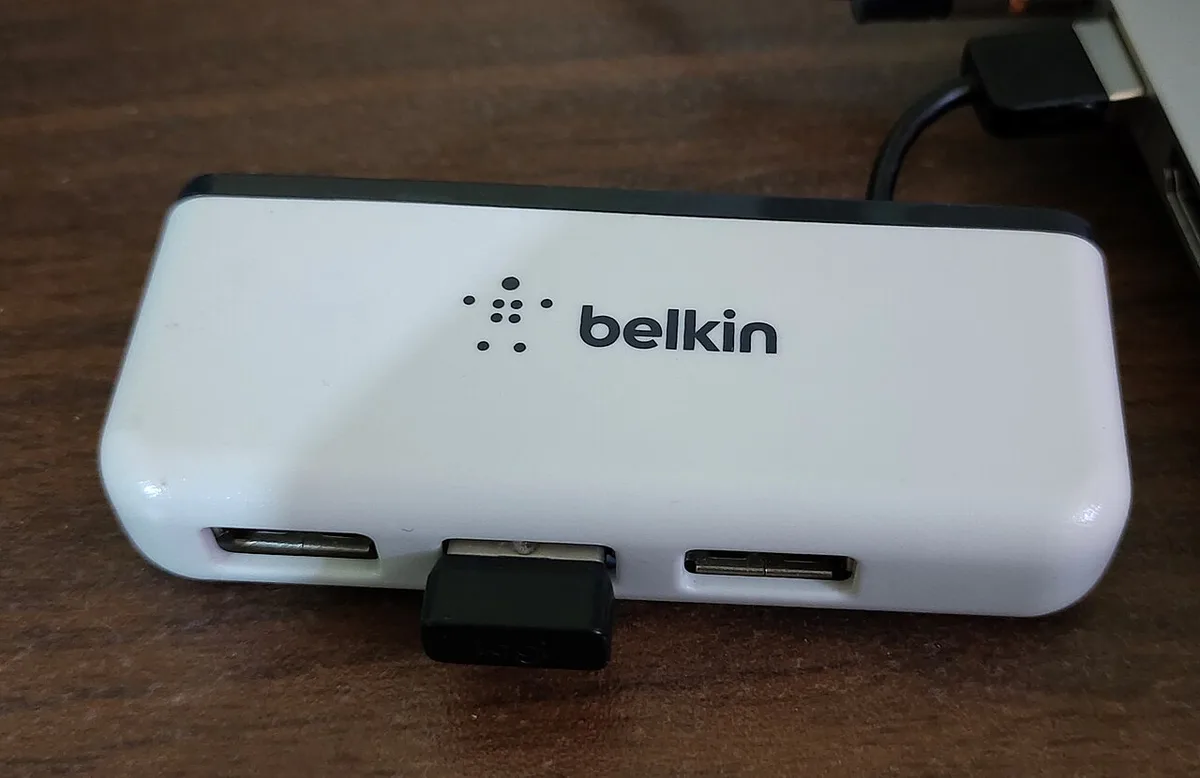
Image source: Wikimedia Commons / YellowForester (CC BY-SA)
Suspect the host device when several hubs fail on the same USB-C port. Check for physical damage, debris, charging-only behavior, or missing video support. A repair shop or manufacturer support service can assess a damaged port without risking further damage.
Frequently Asked Questions
Can a USB-C hub stop working suddenly?
Yes. A hub can stop responding after a power surge, overheating event, failed cable, operating-system update, or physical connector damage. Disconnect every accessory and power source, then reconnect the hub directly.
If it fails with another compatible computer, the hub itself is the likely fault.
Why does my USB-C hub charge but not transfer data?
Charging and data use separate USB-C functions. Your cable may support power but not data, or the host port may be charging-only. Try a full-featured USB-C cable and another port.
Confirm that the hub’s specifications list USB data support for its upstream connection.
Why does my monitor say no signal through the hub?
The host USB-C port may lack DisplayPort Alternate Mode. Check the computer’s specifications first. Then select the correct monitor input, replace the HDMI or DisplayPort cable, and test one display.
Some hubs also limit resolution, refresh rate, or the number of connected monitors.
Can a USB-C hub damage a laptop?
A compliant hub and charger should include basic protection against overcurrent and overvoltage. Risk increases with damaged cables, counterfeit chargers, loose connectors, or products that ignore USB specifications. Stop using any hub that overheats, smells burnt, sparks, or causes repeated power interruptions.